Open or share content
Open a PDF, share an image, select a saved label, or fill a template from TSV data.
LAN label printing for Brother QL
Turn PDFs, images, and product data into ready-to-print labels.
Open PDFs, images, TSV rows, and custom layouts on your phone or tablet. Preview the result, then print directly to your Brother QL-820NWB or QL-1110NWB over your local network.

Overview
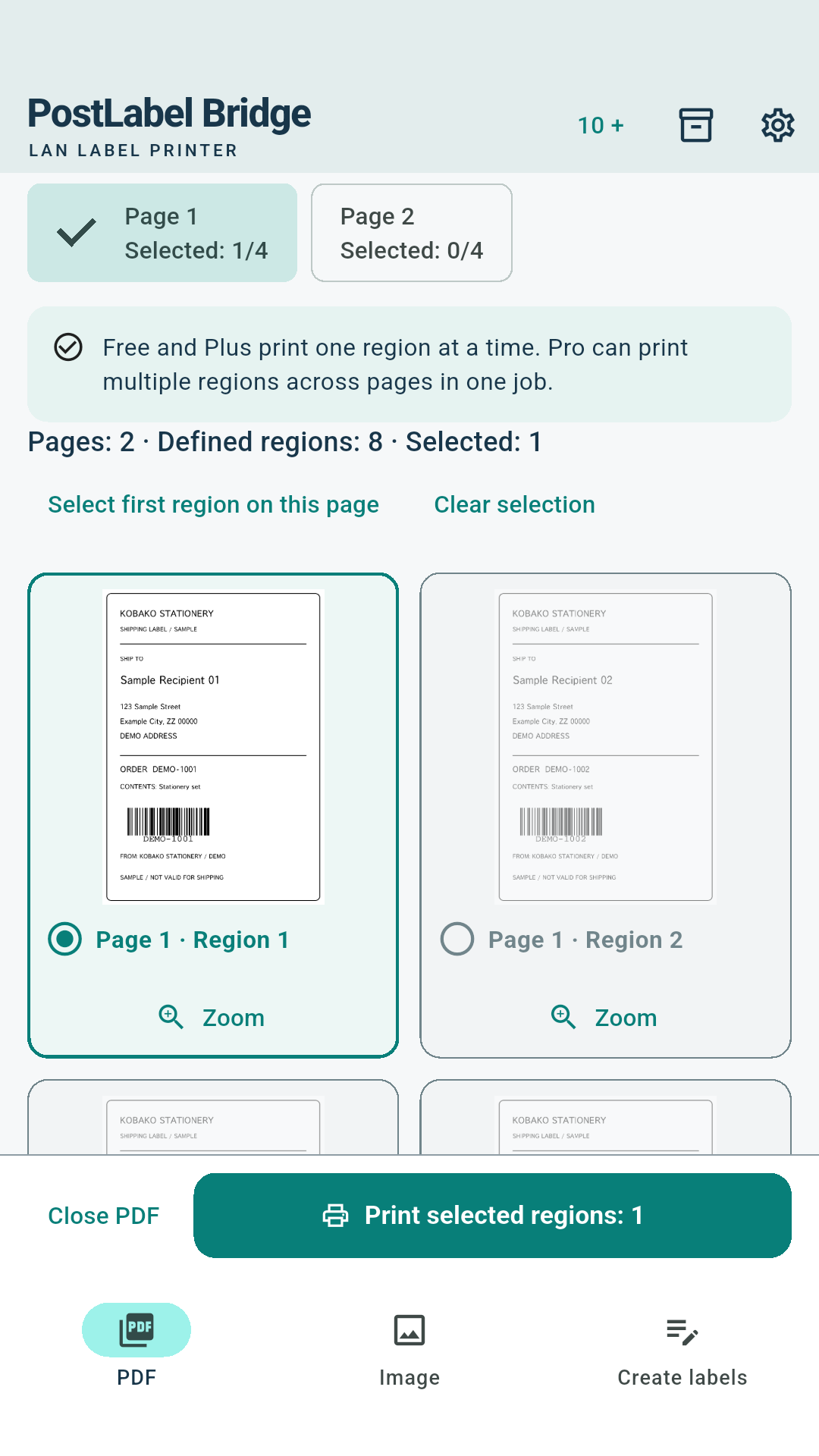
Prepare shipping labels, product tags, and address labels wherever you work. Open your PDF or image, select the area you need, and check the result before sending it to your Brother QL printer.
Features
Each workflow keeps printing deliberate: open or create content, inspect the label-sized preview, then confirm before sending data to the printer.
PDF labels
Choose a page or detected label area, enlarge the preview, and send only the selected area to paper. Pro can print multiple selected areas across multiple pages in one operation.
Label editor
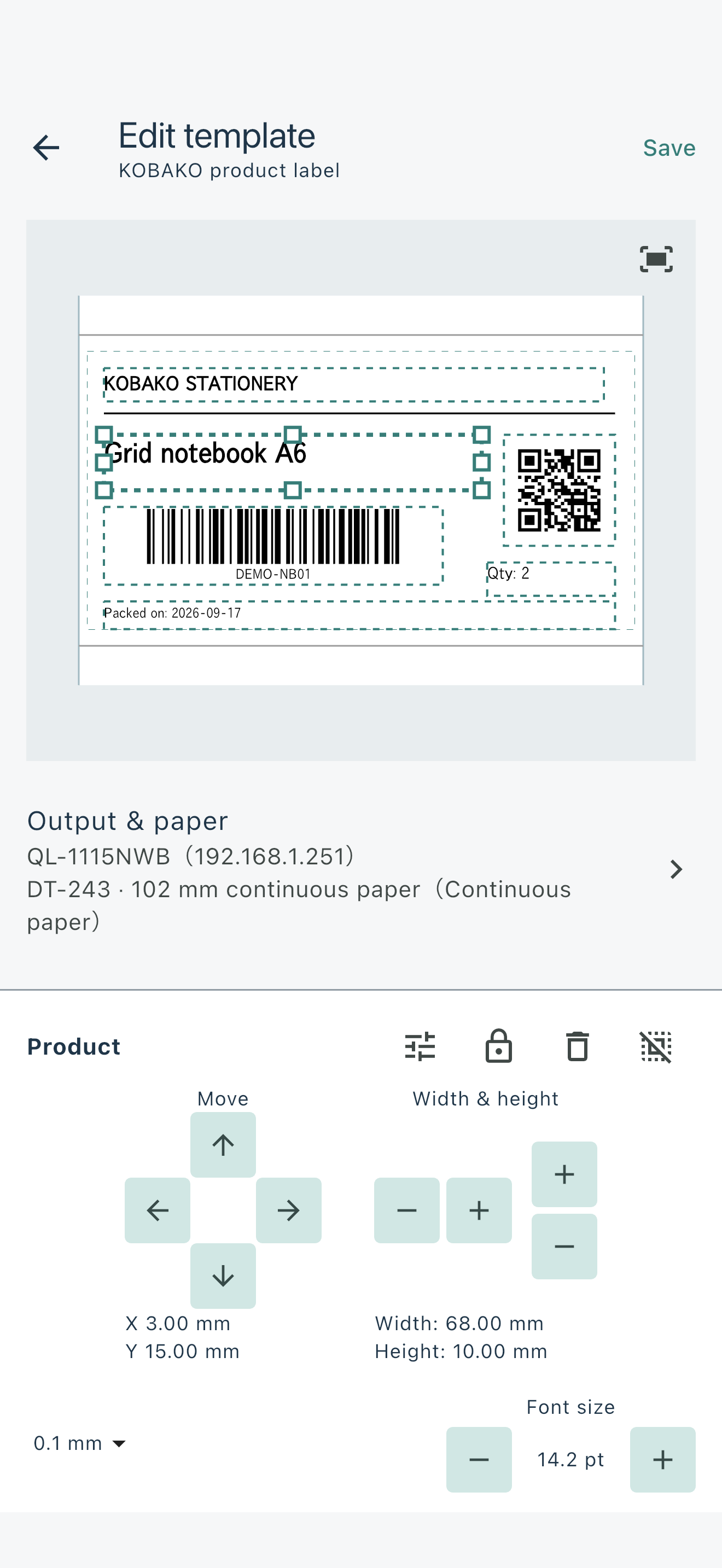
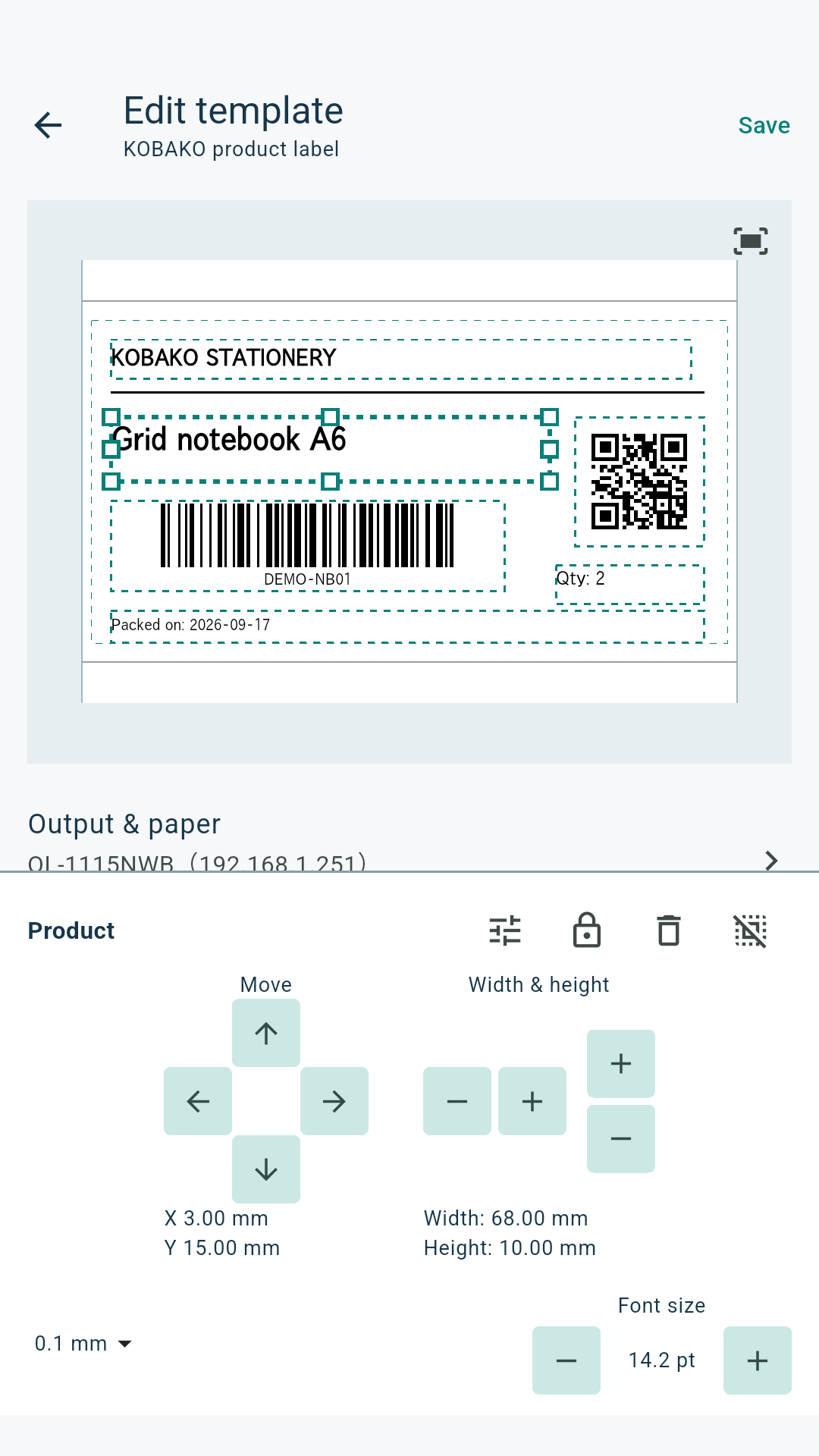
Place text, images, lines, rectangles, QR codes, and Code 128 barcodes with millimeter-based controls. Save layouts and adjust them later instead of rebuilding the same label.
Templates and TSV
Build templates with input fields, fixed text, images, and frames. Import a TSV file or paste table data, pick rows, and let the app fill the label fields.
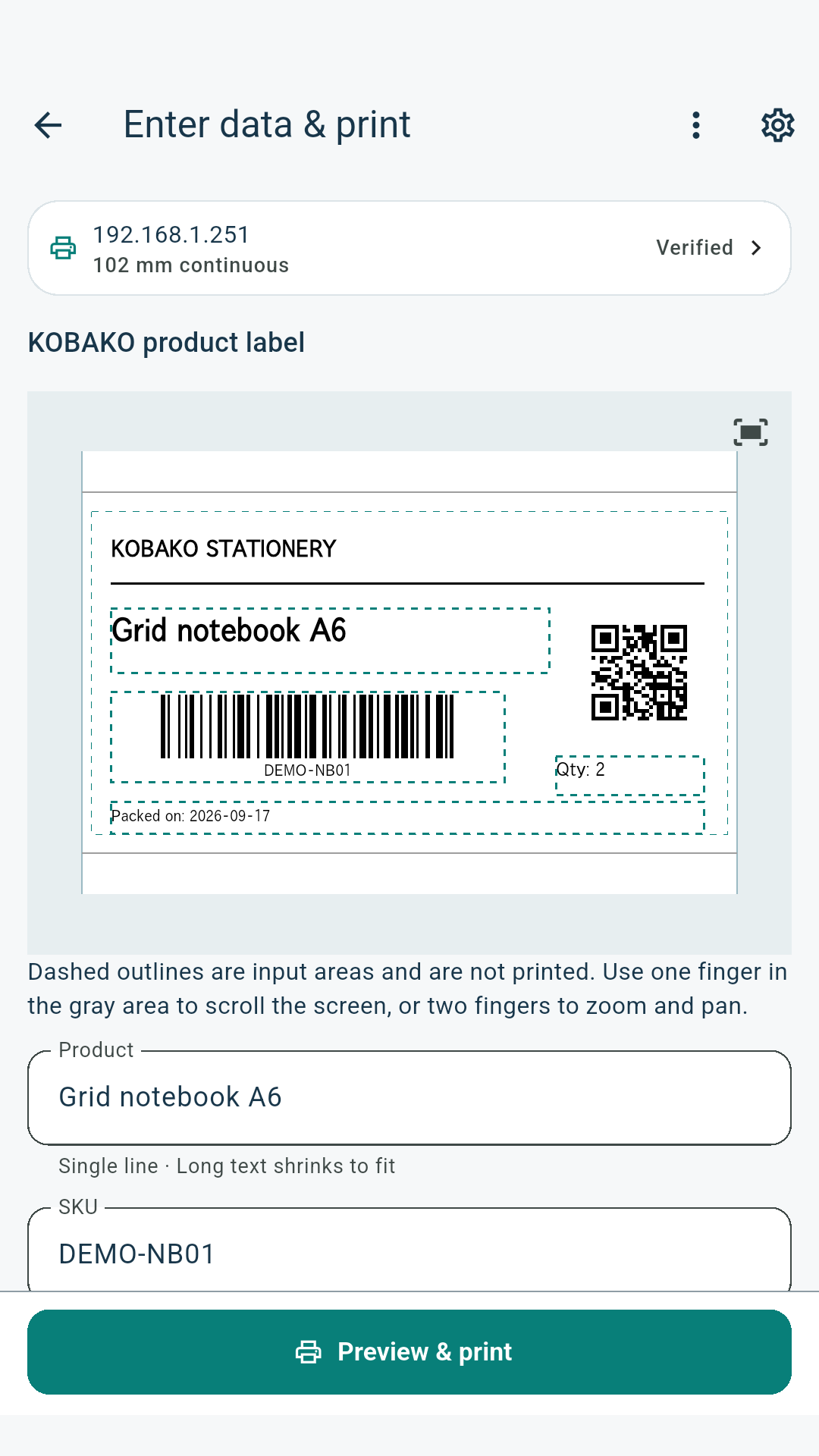
Image printing
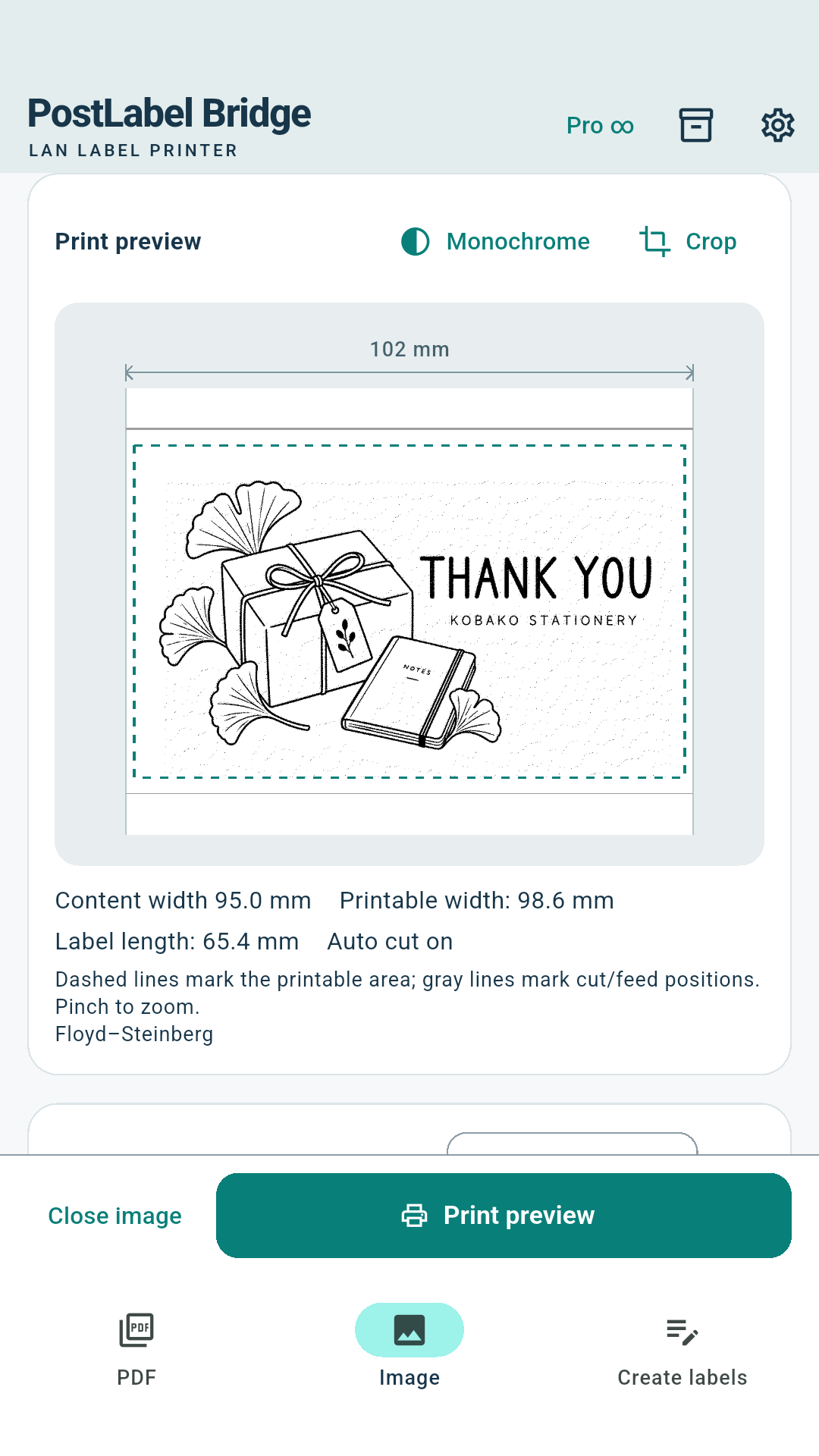
Import PNG, JPEG, WebP, or shared images, crop non-destructively, set the printed size, and compare black-and-white conversion methods before printing.
History
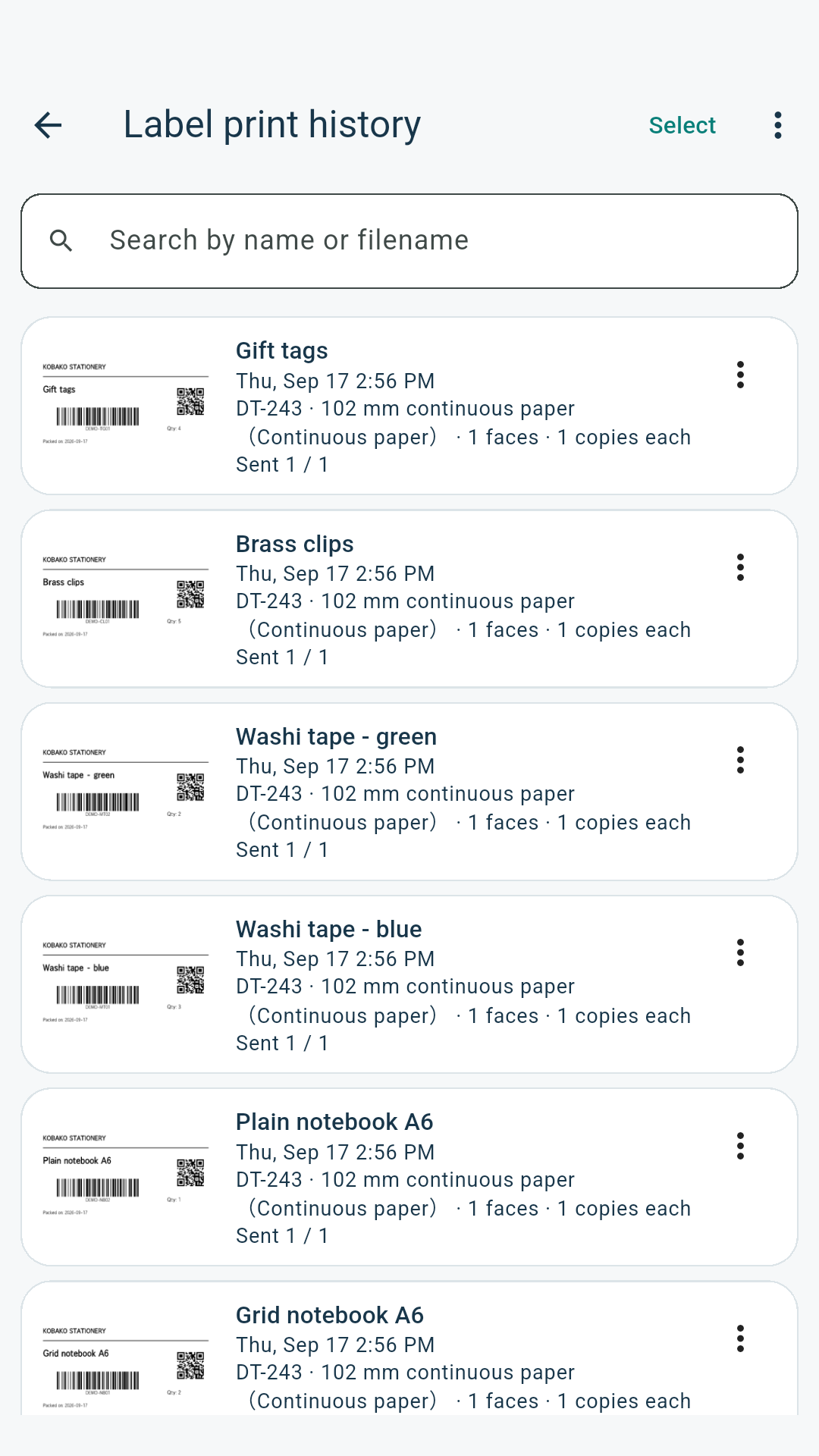
Separate histories help you reopen a previous job, change settings, and print again. Saved labels can be re-edited, duplicated, renamed, or deleted.
Printer setup
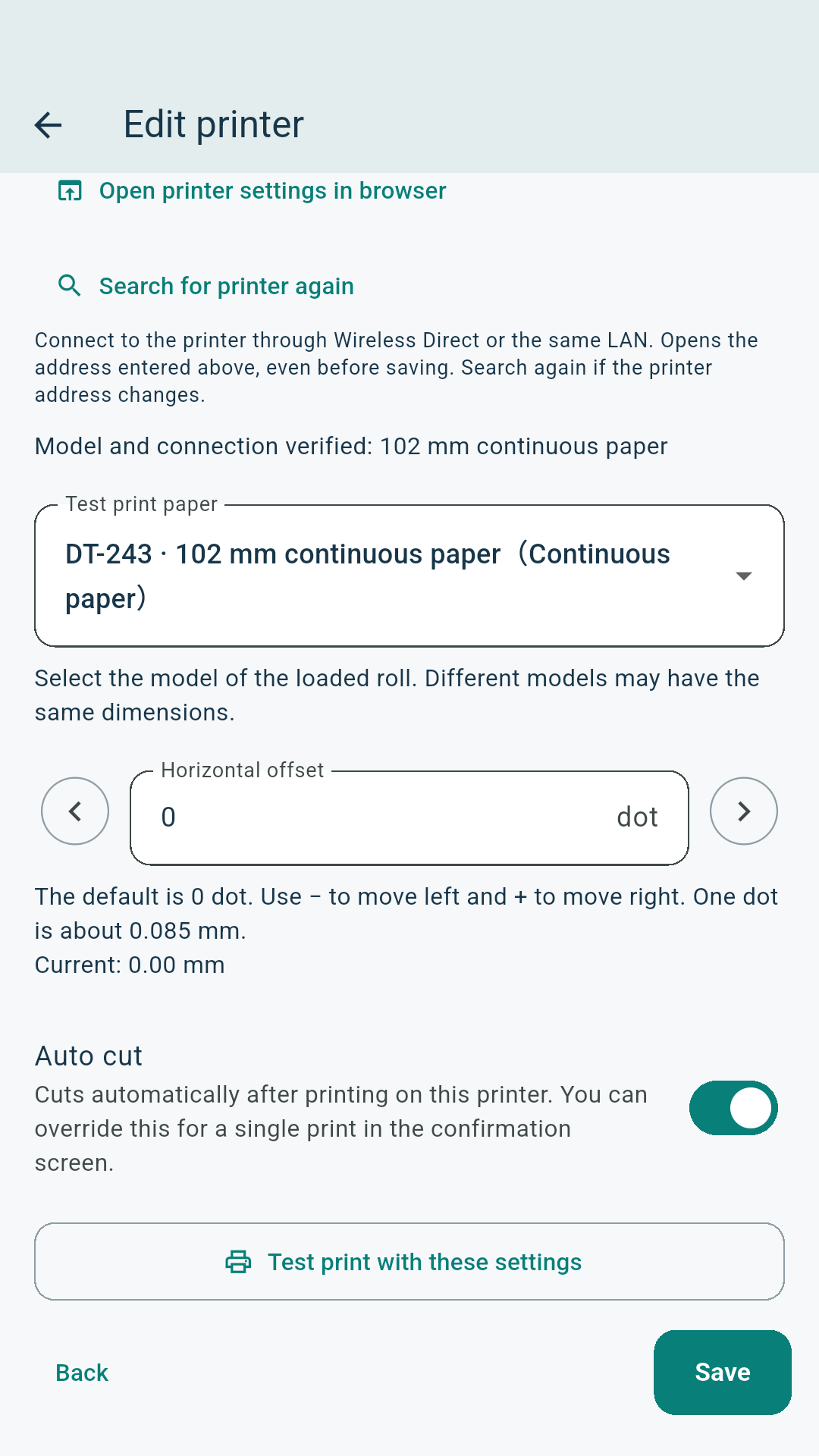
Register a supported Brother QL printer, confirm READY status and paper, run a paper test print, and save horizontal offset for your printer.
Workflow
PostLabel Bridge keeps a two-step confirmation flow so files can be inspected before they become physical labels.
Open a PDF, share an image, select a saved label, or fill a template from TSV data.
Choose the page, area, crop, size, fields, copy count, monochrome conversion, and paper direction.
Check the selected model, READY status, compatible paper, cut settings, and final preview.
Send the fixed black-and-white print data to the registered Brother QL printer.
Plans
The free plan includes initial print credits and optional rewarded ads. Plus and Pro are monthly auto-renewing subscriptions handled by the store.
A print operation uses one credit regardless of copies or pages. Editing, saving, and paper test prints remain available even with no credits.
Includes 10 initial print credits. Optional rewarded ads can add credits. Print one PDF area or one TSV row at a time.
No ads. Active subscription verification refills credits so you can keep printing one PDF area or one TSV row at a time.
Includes Plus features and adds batch printing for multiple PDF areas across pages and multiple TSV rows.
Supported Brother printers
Other printer models are not supported.
A LAN connection that can reach the printer and paper compatible with the selected model are required.
Available paper sizes and cutting options depend on the selected printer and media. The app is not an official Brother application.
Download
Available for iPhone, iPad, and Android. Start with 10 free print operations using your compatible Brother QL printer.
Review the privacy policy and terms for subscriptions, rewarded ads, local network printing, and saved on-device label data.